
Give it what you have
Drop in or select your file. Its contents are inspected before output choices appear, so a misleading or renamed extension is not treated as proof of what is inside.
A free local Windows utility
Convert images, documents, data, audio and video on your own computer. Drop in a file, then choose from its compatible outputs.

Start with the file, not a guess
You should not have to know a file’s technical identity before you can work with it. File Converter brings identification, compatible choices and checked local output into one straightforward journey.
Drop in or select your file. Its contents are inspected before output choices appear, so a misleading or renamed extension is not treated as proof of what is inside.
See outputs compatible with that identified source. You are not handed a giant list of extensions that implies every file can become every other file.
Conversion uses your local Windows environment. Client documents, private photographs and business data do not need to be sent to a browser conversion service.
Your source files are not changed. The produced output is read and checked according to the conversion, rather than success being assumed because a new file exists.
From source to useful output
One file or a compatible batch, the workflow follows the same idea: understand the source, choose a genuine output, then verify the result.
Drop in files or select them from your computer. Each is analysed so you can see its identified type and compatible outputs.
Select one file or a group. For a batch, File Converter offers only outputs shared by all selected files.
Choose the format your next task needs from the actual compatible choices. Review the conversion’s warning so you understand what the new format retains.
Use quality, dimensions or frame rate when that conversion supports them. Choose the output location and how existing filename collisions are handled.
Follow progress and see completed and failed files separately. A failure is not hidden inside a claim that the entire batch succeeded.
Outputs are checked before they are reported as successful. Open the finished file or output folder, while retaining the original for another purpose.

Content first
A photo renamed with a document extension does not become a document. File Converter looks at the actual contents before deciding what it can do.
That means clearer choices from the start: the right output formats for this source, with the relevant options and limits, instead of a guessed conversion that fails at the end.
Everyday work, covered
From photographs and recordings to office documents and workbooks, find a practical format for your next task. These are supported family examples, not an any-to-any conversion chart: the contents of your file determine its valid outputs and controls.
Prepare pictures for sharing, websites and everyday documents. Convert supported JPEG, PNG, WebP, BMP, GIF and TIFF files, with quality or size controls where the chosen conversion supports them.
JPEG · PNG · WebP · TIFF
Turn supported camera files into viewable images. DNG, CR2, CR3, NEF, ARW and other supported RAW sources can produce JPEG or 16-bit PNG/TIFF. Keep the RAW original for future photographic work.
DNG · CR3 · NEF · ARW
Move supported recordings into WAV, FLAC or Ogg Opus, according to the source. Supported MIDI and tracker music can be rendered into audio, rather than simply renamed into a sound file.
WAV · FLAC · MP3 · M4A · Opus
Prepare supported video for another playback or editing workflow. Compatible files can produce MP4, WebM or Matroska; applicable controls include quality, dimensions and frame rate. Convert supported subtitle cues between formats too.
MP4 · WebM · MOV · SRT · WebVTT
Reuse ordered text from supported office files and ebooks. DOCX/ODT can become text, Markdown or HTML; supported text can become documents or EPUB/FB2. A text conversion is not a recreation of the original page design.
DOCX · ODT · Markdown · EPUB · FB2
Bring usable information into another workflow. Export a supported workbook’s first sheet to CSV/TSV, or move structured data between compatible JSON, YAML and other representations. The file’s contents determine the available choices.
CSV · TSV · XLSX · JSON · YAML
Beyond the familiar extensions
Creative production, technical records and structured interchange belong in the same local workspace. Each specialist path is specific about what it converts and what the result represents.
Repackage supported ZIP and TAR-family archives while checking member contents. Change compatible GZIP, BZIP2, XZ or Zstandard stream wrappers without treating a compressed stream as a folder archive.
ZIP · TAR · GZIP · XZ
Make supported local email readable as text or reports. Exchange admitted contact/calendar records through a checked JSON representation. These are file conversions, not access to a mail server or live account.
EML · MSG · MBOX · vCard · iCalendar
Render supported SVG artwork, repackage supported fonts for web use, or move admitted single-mesh geometry between compatible formats. Technical drawings and rich 3D scenes have their own content limits.
SVG · WOFF2 · TTF · OBJ · STL · 3MF
Render supported layered image files into a flat image, or extract text from admitted publishing documents. Supported legacy office and drawing profiles can produce PDF derivatives without claiming to preserve application editability.
PSD · PSB · KRA · IDML · VSDX
Exchange admitted geographic features between compatible map formats. Move supported two-dimensional numeric matrices between NPY, numeric CSV and MAT, or convert an admitted spectroscopy record. No coordinate system or missing data is guessed.
GeoJSON · KML · GML · NPY · MAT
Create previews from supported exact texture profiles, or turn a checked, contiguous DPX/Cineon frame sequence into lossless video with an explicit frame rate. Complex texture structures are not silently flattened.
KTX · Basis · ASTC · DPX · Cineon
Work with supported citation records, biological sequence data and preservation inventories. Each conversion follows the source’s structure, with the result checked against the information that particular output can represent.
BibTeX · RIS · FASTA · FASTQ · WARC
Create supported plotter/PCB SVG visualisations, archive admitted embroidery stitch commands as structured data, or convert supported fixed disk images. These derivatives are not promises of machine-ready designs or device writing.
HPGL · Gerber · DST · PES · fixed VHD
Examples are selective, not the complete format catalogue. Recognition alone does not mean every variant or output is supported.
Make the next task easier
A better output format can make a file easier to share, publish, inspect or use in another application. Start with the result you need, then choose from the file’s compatible options.
Convert a supported photo into a compatible web format. Adjust dimensions or quality when offered, rather than uploading the original to a separate online converter.
Render a supported RAW capture into a viewable JPEG or a 16-bit image for further work. The original camera file remains available for your photographic workflow.
Export a supported workbook’s first worksheet into CSV or TSV for another tool. Work with its cell values without pretending that a plain table retains the workbook’s design.
Decode supported audio into WAV/FLAC or choose an admitted Opus output. Changing format makes it usable elsewhere; it cannot recover detail already lost in a compressed recording.
Select a compatible video output, or convert supported subtitle timing and text for another player. Resize and frame-rate options appear only where they apply.
Extract supported document or ebook text for editing and reuse. Keep the designed original when layout, illustrations or application-specific features matter.
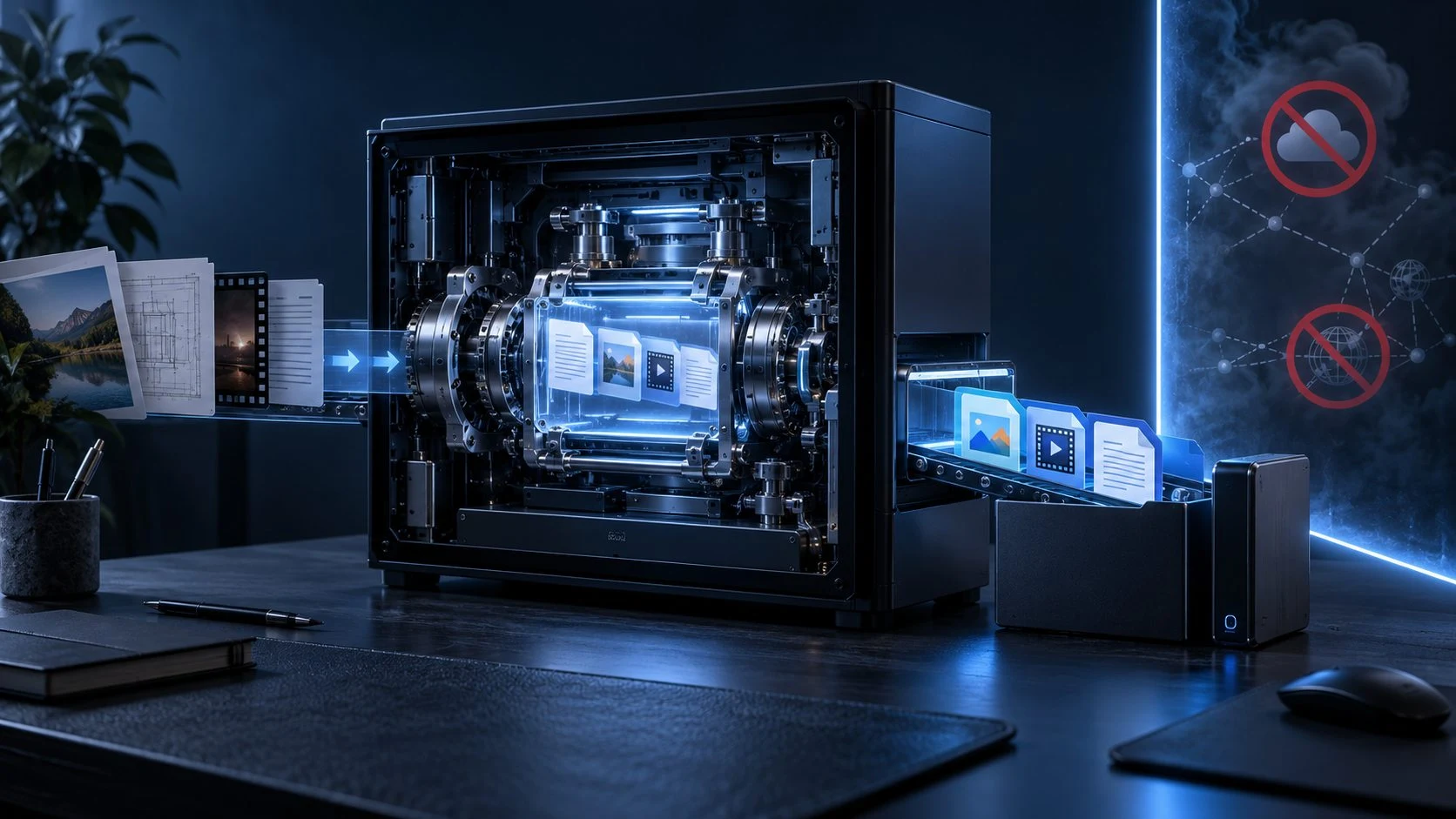
Your files stay local
Convert private documents, photographs and business files on your own Windows computer. The conversion workflow does not send those sources to an online file-conversion service.
Choose where the outputs go and keep the originals untouched. Your VISINVOKE account gives you product access; it does not turn local conversion into cloud processing.

More than a new extension
File Converter reads the output and verifies the relevant result. Depending on the path, checks can cover decoded images, audio/video properties, data values, archive members, subtitle timing or mesh geometry.
It also makes the trade-off clear. A flat image cannot retain editable layers, and extracted text cannot preserve a designed page. You choose an appropriate derivative while the original stays available.

File Converter has no separate purchase or per-conversion fee. It is part of the VISINVOKE free utility collection, accessed through your account and Desktop Command Centre.
A conversion creates a useful derivative. Originals stay unchanged, so you can revisit the source when a different format, quality or use is needed.
The specific file determines what is offered. Warnings explain meaningful changes rather than hiding them behind an impressive-looking list of extensions.
File Converter changes formats. Image Toolkit, PDF Toolkit and the other utilities have their own focused jobs, with product pages that explain those differences.
Keep your workflow connected
Find out what each product does on its own website. Each card opens a focused product page with more detail about its tools and capabilities.

Discover and launch your supported Windows products from one connected account.

Resize, crop and optimise images for the places you want to use them.
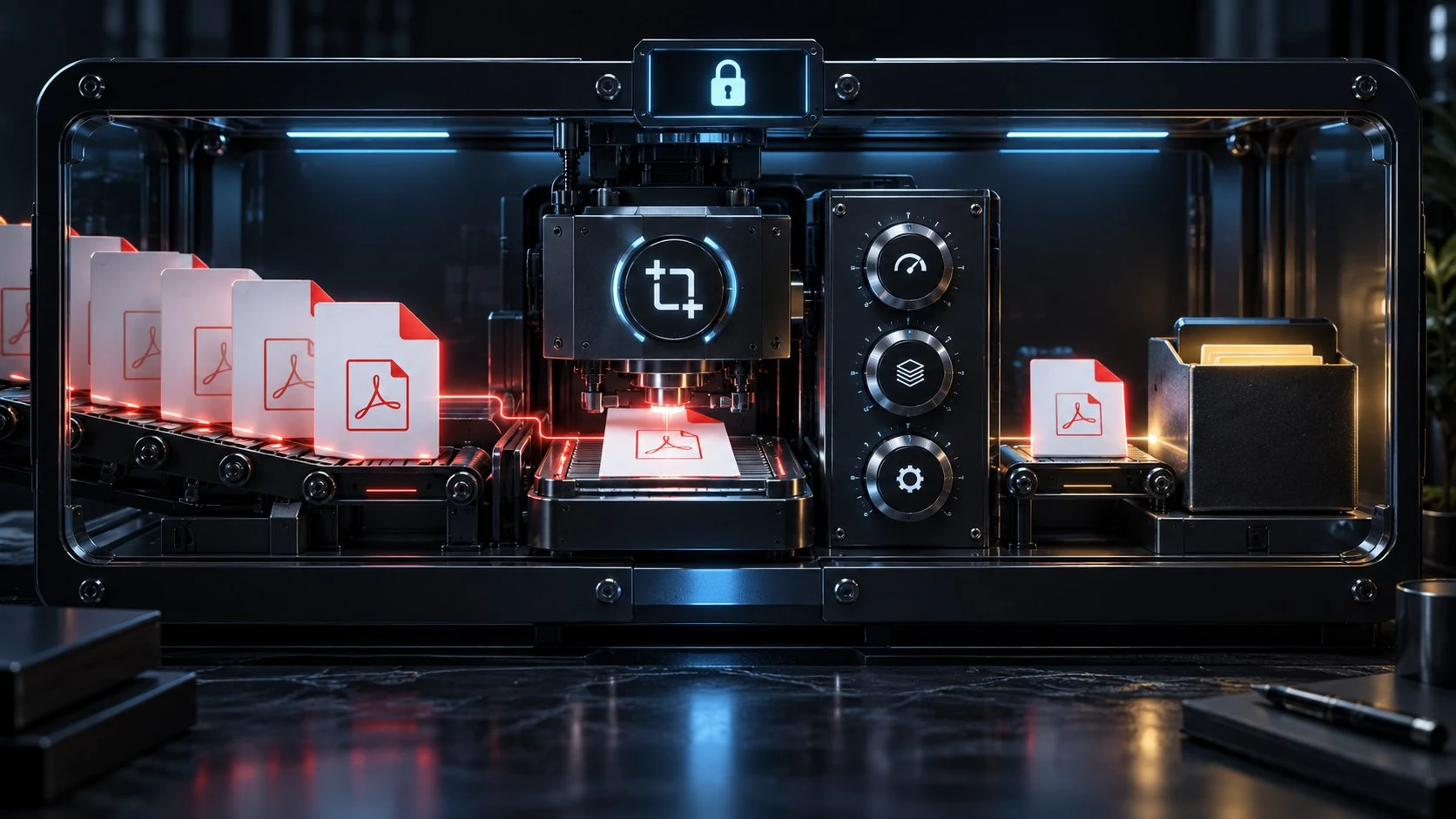
Merge, split, compress, rotate and extract PDF pages locally.

Arrange, crop and layer images into one finished composition.

Copy named folder projects to your own selected storage locations, with exclusions and run reports.
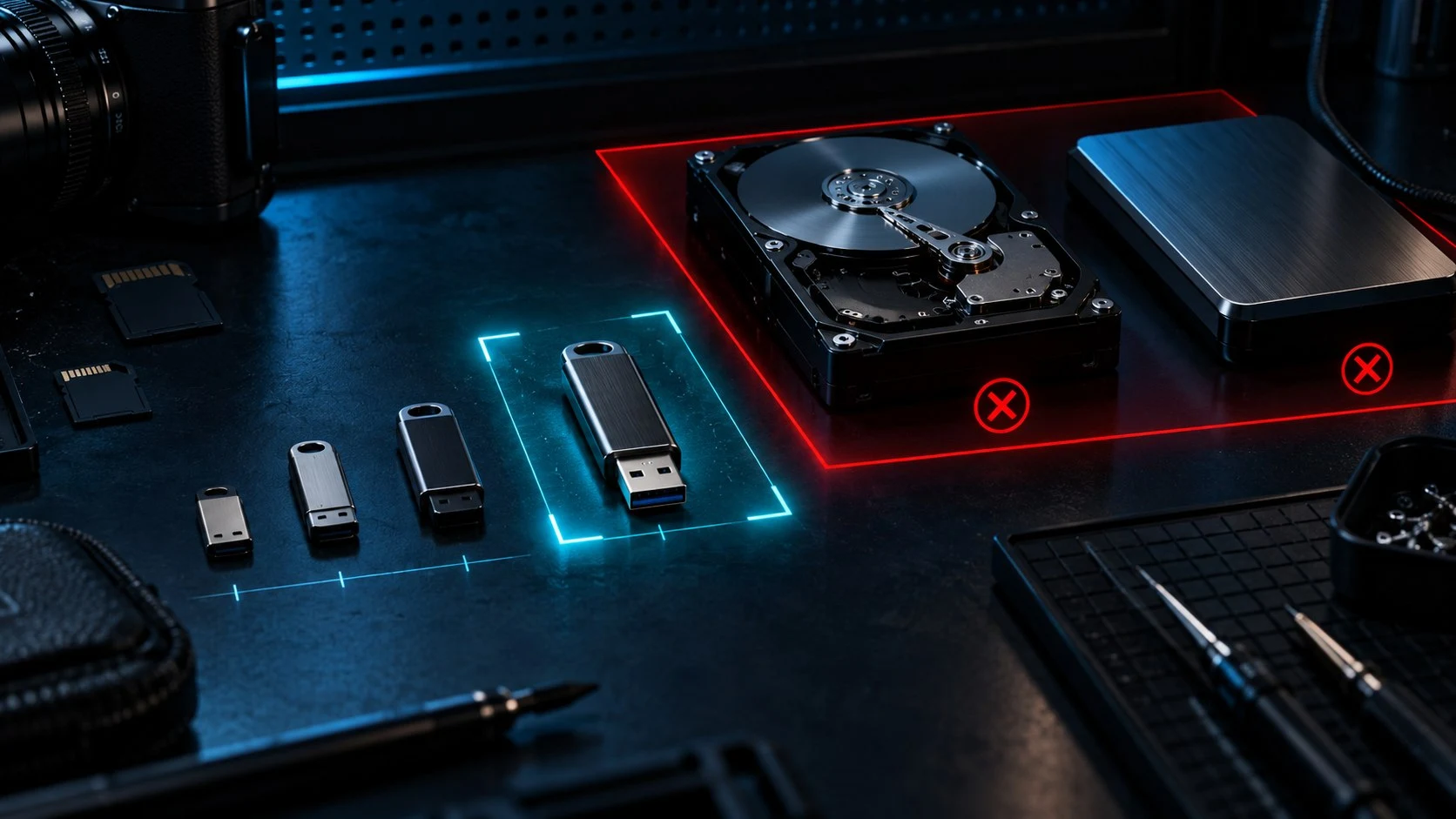
Manage and verify USB content with deliberate device safety checks.
Product artwork illustrates capabilities, not application screens.
Quick answers
Local processing, compatible choices and honest output boundaries are part of the same workflow.
Yes. File Converter is a free VISINVOKE utility with no separate purchase or per-conversion fee. Create a free VISINVOKE account, obtain Desktop Command Centre through your account installer page, sign in and open the utility on your Windows computer.
No. File conversion runs locally on your computer, rather than uploading the source to an online conversion service. A VISINVOKE account is used for product access; that is separate from where conversion happens.
Start by dropping in or selecting the file. File Converter inspects its content, identifies what it actually is and offers compatible outputs. A filename extension alone does not establish that a conversion is valid.
Yes. Select multiple analysed files and choose an output that works for all of them. Only shared compatible outputs and applicable controls are offered. If the files have no shared output, select a different group.
That depends on the path. A flat image cannot keep editable layers; plain text cannot reproduce a designed page. Camera RAW exports are rendered images, and video transcoding can change quality. Review the relevant conversion warning and keep your original.
File Converter does not offer a target merely because a familiar extension appears in the filename. Unsupported file structures are not given a misleading conversion path, and a produced file must pass its output checks before success is reported.
Continue in VISINVOKE
Create a free VISINVOKE account first. Get Desktop Command Centre from your account installer page, sign in on your Windows computer and open File Converter.
Bring in your files, see compatible outputs and keep the conversion work on your own machine.